

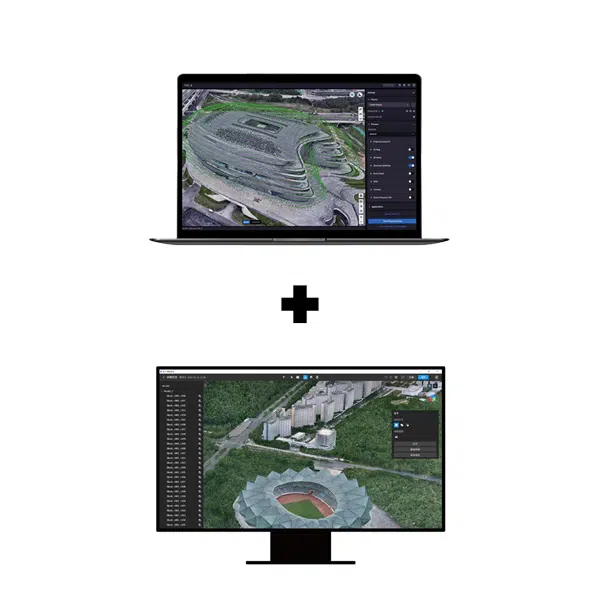


Terra Flagship + Modify Flagship · Permanent bundle · Online authorization
DJI Terra Flagship + Modify Flagship Permanent: reconstruction and editing on one workstation
This permanent bundle combines DJI Terra Flagship for advanced reconstruction with DJI Modify Flagship for refining supported meshes and point clouds. Choose it when recurring projects need both Terra Flagship capabilities and an editing stage before handover.
Define the intended result, receiving application and workstation before purchase. Our DJI Terra License Guide helps you compare the Terra editions, license terms and deployment options.
What the two Flagship applications do
DJI Terra Flagship
Reconstruct 2D maps, 3D meshes and point clouds from suitable data. The Flagship edition also includes Gaussian Splatting and Electricity Application in DJI’s license comparison.
DJI Modify Flagship
Refine supported meshes and point clouds after reconstruction. Prepare the editing work around the review, visualization or survey deliverable your customer expects.
Compare the bundle with your actual workload
Choose the Terra edition around the reconstruction capability you require. Compare Terra Standard + Modify Flagship Permanent if your workflow uses the shared Terra capabilities and also needs Modify.
Bundle and license details
| Product | DJI Terra Flagship + Modify Flagship Permanent |
|---|---|
| Included applications | DJI Terra Flagship and DJI Modify Flagship |
| Term | Permanent bundle with perpetual entitlements |
| Authorization | Online; plan a stable internet connection for use |
| Workstation binding | Both applications in the bundle must be bound to the same computer |
| Setup | Install both applications and complete their activation and binding instructions |
| Delivery | Electronic delivery of license information by email |
| Estimated release | 1–2 hours on business days after payment confirmation and receipt of the required details |
| Currency and invoice | USD; invoice supplied by Drone Emotions |
Current pricing and applicable tax information appear in the purchase area and checkout. See our Terms of Sale for order and delivery conditions.
Where Terra Flagship adds value
Gaussian Splatting
Prepare a photorealistic visualization workflow. Agree the result type, viewing environment and presentation requirements with the recipient before acquisition.
Electricity Application
Describe your electricity-sector task and required outputs so the acquisition method, equipment and software workflow can be reviewed before purchase.
Use the official DJI Terra license comparison to verify the edition. For a cluster deployment, confirm the configuration and required entitlements separately.
Plan the workflow around the result type
- Define the handover. Agree whether the customer needs maps, a mesh, point clouds, a visualization or several separate deliverables.
- Prepare the source dataset. Check imagery or sensor files, positioning data, coordinate references and control.
- Reconstruct in Terra Flagship. Choose settings around the accepted deliverable and review a representative test before production.
- Edit compatible results in Modify. Plan mesh or point-cloud operations around the supported inputs and intended handover.
- Validate and deliver. Open the final output in the receiving application and check it against the agreed acceptance criteria.
Plan Gaussian Splatting presentations and mesh-editing outputs as distinct result types. Confirm compatibility before committing to an editing workflow. DJI explains the interaction between the programs on the official DJI Modify page.
What does Modify add?
Mesh cleanup and repair
Tools include floating-part removal, hole filling, surface flattening, texture repair and water-surface repair. Choose edits around the purpose of the delivered model.
Point-cloud refinement
Tools include smoothing, noise reduction, downsampling and classification. Review how each operation affects the result needed by the receiving team.
Terrain preparation
Modify supports terrain-result generation from point-cloud workflows. Confirm the required deliverable and check it in the intended downstream application.
Export and handover
Mesh and point-cloud export options support delivery to compatible applications. Agree the required format and test it before committing to a production workflow.
Review edits against the project purpose
Keep the original reconstruction and record the areas changed. A presentation model and a survey deliverable may have different acceptance criteria. Confirm any geometry edits with the responsible project team before handover.
Check versions, project structure and formats
DJI specifies visible-light meshes reconstructed in Terra V4.0.0 or later for Modify’s mesh-editing workflow. Check the current requirements for the particular input and output you intend to use.
Prepare the project storage before moving to Modify. DJI’s FAQ cautions against renaming or moving Terra reconstruction results after creating a Modify project. Keep source datasets and accepted outputs organized for later review.
Consult the official DJI Modify FAQ for compatibility and workflow guidance. For point clouds, verify the input, classification and export requirements separately.
Include mapping in the wider project plan
Define the area, required resolution and coordinate reference before acquisition. Agree how mapping outputs will be used alongside 3D results and how repeat surveys will be reviewed.
Explore our DJI Terra Features page and use the Accuracy, GCP & RTK Guide to prepare questions about control and independent verification.

Agree the scope of 3D editing before delivery
Review a representative reconstruction with the receiving team. Identify the areas requiring cleanup or repair and agree the format, detail and acceptance criteria for the edited result.
Keep a record of the original reconstruction and any geometry changes. A visualization and a survey handover may have different requirements; plan the editing stage with the person responsible for accepting the output.
Prepare one computer for reconstruction and editing
DJI requires both applications in the bundle to be bound to the same computer. Choose the final workstation before activation and confirm planned changes with us. Refer to DJI's published bundle-binding condition.
Check the requirements of both applications. Plan a supported Windows and NVIDIA configuration with enough RAM, graphics memory and storage for your expected datasets. Review Modify’s separate requirements in its official FAQ.
- System Requirements & WorkstationsPlan Terra capacity and review the separate Modify requirements.
- Supported Drones & SensorsCheck the equipment and required Terra version.
- Installation & Activation GuidePrepare Terra activation and follow the supplied bundle instructions.
- Accuracy, GCP & RTKDefine control and independent checks.
Order and receive your permanent bundle
Select the quantity and use the purchase button on this page. Enter the billing details and choose an available payment method. The automated order-confirmation email constitutes acceptance of the order by Drone Emotions.
Estimated email delivery is 1–2 hours on business days after payment confirmation and receipt of the required details. Orders received on non-business days are processed on the next business day. Payment clearance, incomplete information or availability can affect this estimate.
Follow the supplied instructions for both applications and retain the invoice and licensing correspondence. If you already own a Terra or Modify license, contact us before purchase so the appropriate purchasing option can be reviewed.
Watch a Terra reconstruction example
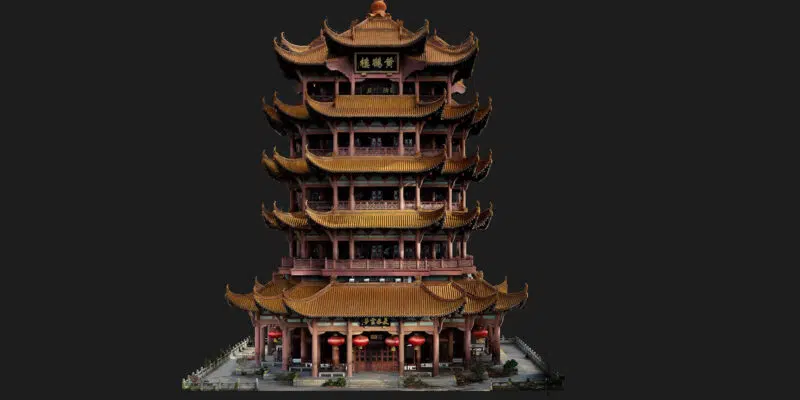
This short video illustrates a DJI Terra reconstruction. Visit our DJI Terra Video Tutorials for additional learning resources.
Questions about the Flagship permanent bundle
Which editions does the bundle include?
DJI Terra Flagship and DJI Modify Flagship. Each program has its own role in the reconstruction and editing workflow.
Is this an annual subscription?
No. This listing is the permanent bundle with perpetual entitlements.
Can I bind Terra and Modify to different computers?
DJI’s bundle rule requires the two programs to be bound to the same computer. Confirm the intended deployment before activation.
Does Modify work without internet?
DJI states that Modify requires a continuous network connection during use. This bundle uses online authorization.
How do I choose between the Standard and Flagship bundles?
The Modify edition is Flagship in both. Select the Terra edition around the reconstruction capability required by your project, using the comparison linked above.
Can I send every Terra result directly to Modify?
Check the supported input and intended editing operation for each result type. DJI specifies compatible Terra visible-light meshes for mesh editing; verify other workflows in the current Modify documentation.
Where can I download the software?
Use our Terra Download page and the official DJI Modify downloads. Follow the supplied activation instructions for both programs.
What if I only need Terra?
Compare Terra Flagship Permanent and select the purchase around the editing work you expect to perform.
Confirm your Flagship reconstruction and editing setup
Send your sensor, expected dataset size, intended deliverables and workstation details. Include any existing licenses and deployment deadline so we can help you confirm the purchase or prepare a company quotation.
