
Create maps & 3D results
Start by assessing Terra against your sensor, dataset and required output. Identify the reconstruction task before considering any later editing.

DJI software comparison & workflow guide
DJI Terra creates mapping and reconstruction results. DJI Modify helps refine supported 3D meshes and point clouds. Start with the deliverable you need, then decide whether your workflow calls for Terra alone or both applications.
This guide explains the differences, the handoff between the programs and the practical checks to make before choosing a license or bundle.
Start by assessing Terra against your sensor, dataset and required output. Identify the reconstruction task before considering any later editing.
Assess Modify against the exact mesh or point-cloud file you already have. Check compatibility first and define the edits you want to make.
Plan a combined workflow. Confirm the Terra edition, the Modify entitlement and the computer that will run both programs before purchasing.
| Project task | DJI Terra | DJI Modify |
|---|---|---|
| Main purpose | Reconstruction and processing. | Editing supported reconstruction results. |
| Photographs | Creates 2D and 3D results from suitable imagery. | Works on compatible outputs. |
| DJI LiDAR | Processes supported sensor data. | Refines compatible point clouds. |
| Mesh cleanup | Generates the reconstructed mesh. | Tools for defects, surfaces and textures. |
| Point-cloud editing | Produces processing outputs. | Smoothing, noise reduction, downsampling and classification. |
| Best buying question | Which reconstruction capabilities do I need? | Which edits does my deliverable require? |
On mobile, swipe the table horizontally to read all columns. This comparison summarizes the applications’ roles; input support and capabilities depend on version and license.
Terra supports 2D mapping, 3D mesh reconstruction, DJI LiDAR processing and multispectral reconstruction. Gaussian Splatting is also available with the applicable Terra entitlement.
For your project, list the outputs the recipient expects: a map, a surface, a point cloud or a 3D scene. Compare these requirements with the current edition and sensor support.
Modify provides mesh tools for floating parts, holes, surface flattening, texture repair and water surfaces. Its point-cloud tools help clean data, adjust classifications and generate terrain results.
Decide which features must remain unchanged and which areas need editing. Review the result after each operation, especially around thin structures, edges and transitions.
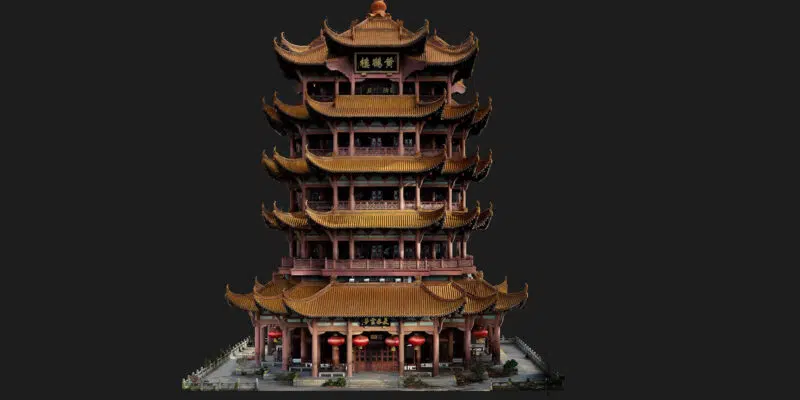
The following is our suggested project checklist. Adapt it to the sensor, software versions and delivery specification you use.
DJI documents a direct Terra-to-Modify workflow. Test a small representative dataset first so you can confirm that the reconstruction, editing and export stages meet your requirements.
DJI’s FAQ specifies meshes reconstructed in Terra V4.0.0 or later. Once a Modify project references a Terra result, avoid moving or renaming the source result folders.
For third-party meshes, request a compatibility check before purchasing. A familiar file extension alone does not establish a supported workflow.
Modify supports LAS input. DJI lists LAS, PNTS, PLY, PCD and S3MB among its point-cloud export formats.
Check a sample file for scale, reference system, attributes and classifications. File compatibility should be confirmed separately from the mesh workflow.
A Gaussian Splatting scene should not be treated as a conventional textured mesh. Do not assume that the mesh repair workflow described here applies to a splat scene. Confirm the intended viewing or editing application before choosing that output.
References: DJI Modify FAQ and DJI Modify product specifications.
Terra’s online paid features require a stable internet connection. A Terra offline license permits paid processing without internet after the required authorization and binding. Modify requires a constant network connection during use.
If your processing environment must remain disconnected, assess the complete workflow before purchasing both programs. An offline Terra entitlement does not remove Modify’s connectivity requirement.
DJI requires Terra and Modify purchased as a bundle to be bound to the same computer. Select the workstation first and confirm the DJI account and activation instructions for the exact package.
Annual and permanent products have different durations. Read the selected listing rather than assuming that a bundle, trial or separate license has identical terms. See our DJI Terra License Guide and Installation & Activation Guide.
Choose the Terra edition around the reconstruction capabilities you need. The Modify component does not upgrade the Terra edition included in a package.
Consider this bundle when the Standard reconstruction capabilities fit your work and you also need Modify for compatible results.
Write down the actual deliverables and editing tasks. Check them against both applications before choosing the package.
Consider this bundle when you also need Flagship-specific capabilities, including Gaussian Splatting or Electricity Application.
Specify which output you will create and which output you will edit. Including Modify does not imply that every Terra output is editable in Modify.
Current prices, tax information, delivery details and license terms appear on the product pages. For a Terra-only workflow, browse the Terra licenses.
Modify’s published minimum includes 64-bit Windows 10 or later, 32 GB RAM, an NVIDIA GPU with at least 4 GB VRAM and compute capability 6.1, and driver 522.25 or later. Its recommendation increases this to 64 GB RAM and an RTX 2070-class GPU or better with at least 8 GB VRAM and compute capability 7.0.
A minimum specification is an entry requirement, not a processing-time guarantee. Allow storage for source data, reconstruction files, editing projects and backups. Use a representative project to assess memory needs and turnaround time.
Check the requirements of both applications before buying or changing a computer. Read our System Requirements & Workstations guide and the official Modify requirements.
For measurement work, separate presentation quality from geometric validity. A filled hole or flattened surface represents an edit; it should not automatically be treated as a new measured observation.
Our Accuracy, GCP & RTK guide explains how to plan control and result verification.

They address different processing stages. Choose Terra for reconstruction, then assess whether your supported result needs the editing capabilities of Modify.
Make that decision after reviewing the required output. If the reconstruction already meets the delivery specification, an additional editing stage may offer little value.
Tell us your existing edition, license type and intended workstation first. We can help you assess the additional software needed without assuming a second Terra entitlement is necessary.
DJI’s published bundle condition requires them to be bound to the same computer. Discuss a different deployment requirement before purchasing.
Check the editing workflow for the exact output type. Terra’s edition and Modify’s input compatibility are separate questions, especially for Gaussian Splatting.
Review why the reconstruction is incomplete before editing. A presentation repair may be suitable for a visual deliverable, while a measurement project may require better observations and reprocessing.
Include your drone or sensor, existing license, typical dataset size, required output, intended edits, computer specification and connectivity constraints. These details make the recommendation more useful.
Use DJI’s official download pages linked below. Check the release notes and compatibility information before changing the versions used for an ongoing project.
Compare editions, duration and online or offline authorization.
Assess the computer against the dataset and processing task.
Check your drone, sensor and required processing support.
Prepare the installation, account and activation steps.
Use these references to confirm the requirements of the software version and license you plan to use. Our workflow checklist and buying guidance are editorial recommendations from Drone Emotions.