

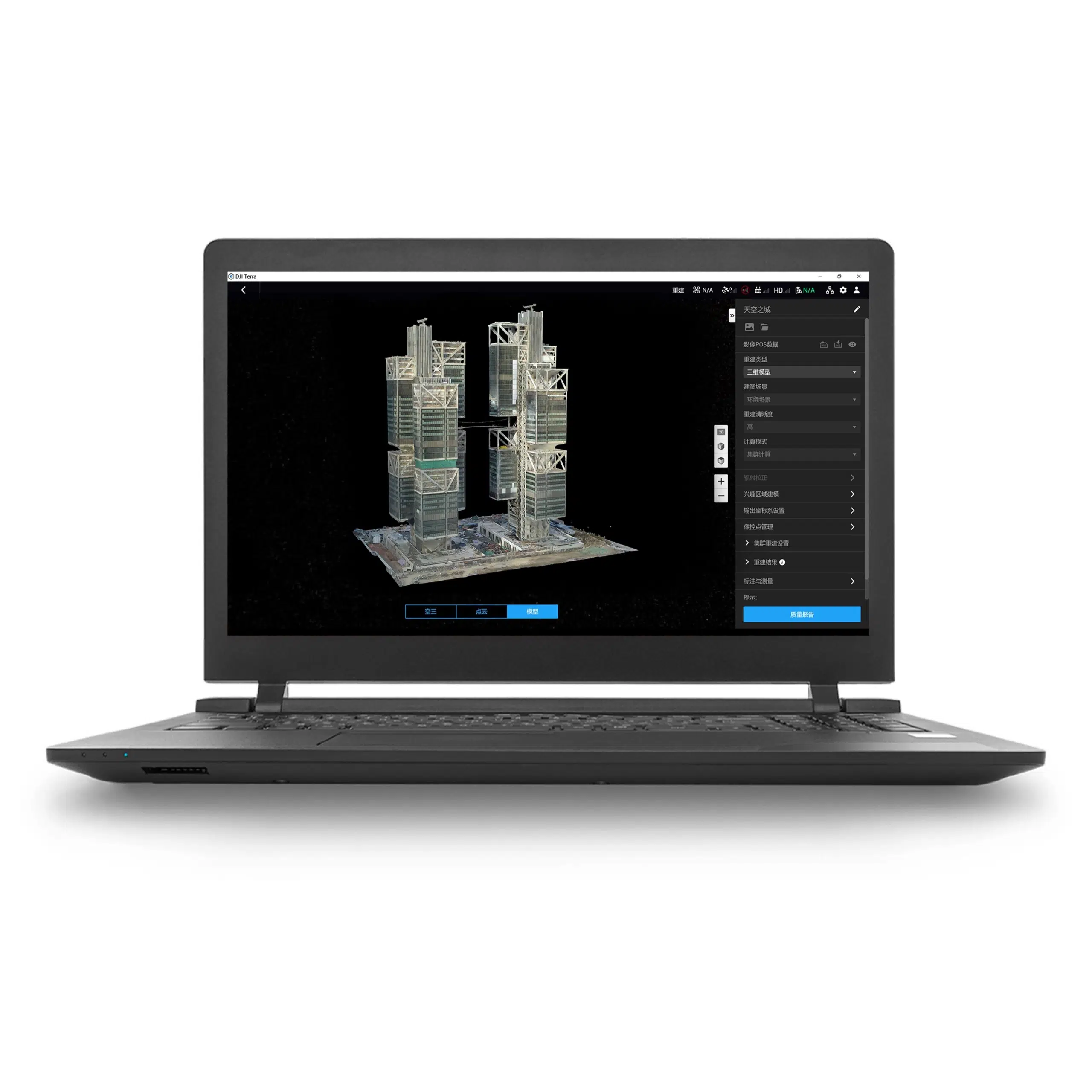


Standard edition · 1-year term · Offline license
DJI Terra Standard 1 Year Offline: reconstruction without a continuous internet connection
Choose DJI Terra Standard 1 Year Offline for a defined period of mapping and reconstruction on a designated workstation without internet access during paid processing. This product combines the Standard edition with a one-year term and offline authorization.
It can suit remote project offices or controlled IT environments where a continuously connected processing computer is impractical. Plan the authorization process and workstation configuration before starting. Compare the alternatives in our DJI Terra License Guide.
License details at a glance
| Product | DJI Terra Standard 1 Year Offline |
|---|---|
| Edition and duration | Standard edition; one-year entitlement |
| Processing connection | Paid features can be used without internet after offline authorization and binding |
| Workstation | One designated computer; authorization is linked to its hardware |
| Authorization method | License request file, DJI license exchange and import of the returned authorization file |
| Start of validity | Offline validity starts when the license certificate is redeemed; retain the confirmed expiry date |
| Delivery | Electronic delivery of the required license information by email |
| Estimated release | 1–2 hours on business days after payment confirmation and receipt of the required details |
| Currency and invoice | USD; invoice supplied by Drone Emotions |
| DJI Modify | Separate software; this listing is for DJI Terra Standard |
Current pricing and tax information appear in the product purchase area and checkout. See our Terms of Sale for the order and delivery conditions.
How offline authorization works
Offline processing still requires preparation and a license exchange through DJI’s online portal. Arrange access to a connected computer and an approved method of transferring the authorization files if your processing workstation must remain disconnected.
- Prepare the final workstation. Install DJI Terra and the required licensing components following the supplied instructions.
- Create the request locally. Generate the .WibuCmRaC license request on the computer that will use Terra.
- Complete the exchange. Submit the request file, exchange code and required email details through DJI’s license-exchange procedure.
- Import the authorization. Apply the returned license file on the same workstation, following DJI’s instructions.
- Validate your workflow. Run a representative dataset, confirm the required outputs and record the license expiry before the main project starts.
Our Installation & Activation Guide introduces the process. Follow the instructions delivered with your license and the official DJI Terra FAQ for the applicable authorization procedure.
Choose the hardware before creating the request
DJI states that replacing hardware after an offline license is bound can invalidate it. Finalize the computer configuration before generating the request and contact us before repairs, upgrades or a planned workstation replacement.
Standard reconstruction workflows
2D mapping
Reconstruct orthophotos and digital surface models from suitable aerial photographs. Define the required resolution and coordinate reference with the receiving survey or GIS team.
3D meshes and point clouds
Build textured meshes and photogrammetric point clouds for project review and handover. Agree the output format and level of detail before processing a full dataset.
DJI LiDAR processing
Process supported DJI LiDAR datasets into point clouds and terrain results. Check the payload and software version against the planned workflow.
Multispectral reconstruction
Process compatible multispectral imagery for reflectance and vegetation-index outputs. Prepare capture and validation around the field question being investigated.
See our DJI Terra Features page for a broader explanation. Offline authorization does not make internet-dependent services available offline.
Prepare a complete mapping dataset
Before moving files to the processing workstation, check image coverage, sharpness and any required positioning or control data. Use a consistent folder structure so that another member of the project team can understand the dataset.
Agree acceptance checks before reconstruction. Our Accuracy, GCP & RTK Guide explains how to approach control, coordinate references and independent verification.

Review the 3D handover requirements
Test a representative dataset before committing the workstation to a large reconstruction. Check that the intended output opens correctly in the recipient’s application and allow time for review and revisions within the licensed period.
Confirm the edition before ordering
DJI places Gaussian Splatting and Electricity Application in Flagship rather than Standard. Ask about the appropriate Flagship offline option if either is essential. For cluster processing, confirm the required configuration and entitlements separately.
Review the official DJI Terra license comparison and our available DJI Terra products.
Compare the authorization and term
Need a connected workstation?
Compare Standard 1 Year Online if a stable internet connection is available during paid processing. Choose the authorization method with your IT team.
Need ongoing offline use?
Compare Standard Permanent Offline for recurring projects over several years. This annual listing has a defined one-year term.
Plan the next entitlement before expiry if paid processing must continue. Include possible client revisions in the schedule and contact us to confirm the appropriate continuation option.
Prepare the workstation and project
- System Requirements & WorkstationsPlan graphics, RAM, storage and dataset capacity.
- Supported Drones & SensorsCheck your payload and required software version.
- Installation & Activation GuidePrepare the license request and authorization workflow.
- Accuracy, GCP & RTKDefine control and independent checks.
For a controlled IT environment, agree installation permissions, file transfers, backups and software-update arrangements with the responsible team before purchase. Offline authorization alone does not establish a complete data-security policy.
Order and receive your license information
Select the quantity and use the purchase button on this page. Complete the billing details and choose an available payment method. The automated order-confirmation email constitutes acceptance of the order by Drone Emotions.
Estimated email delivery is 1–2 hours on business days after payment confirmation and receipt of the required details. Orders received on non-business days are processed on the next business day. Payment clearance, missing information or availability can affect this estimate.
Allow additional time for your workstation preparation and the offline authorization procedure. Keep the invoice and licensing correspondence. Contact us before ordering if you have a fixed deployment deadline.
Watch a reconstruction example
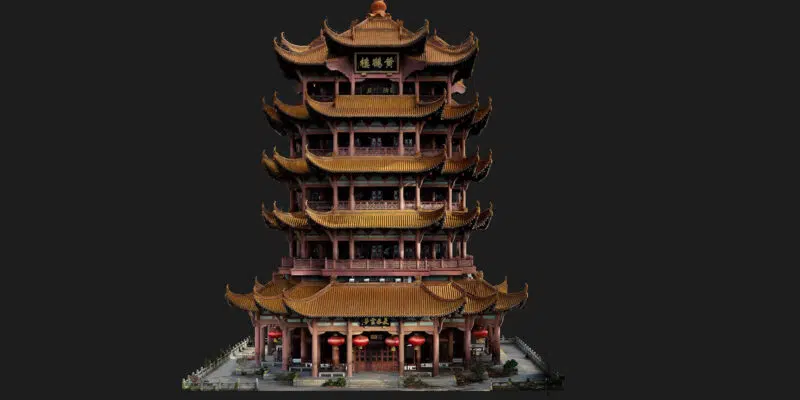
This short demonstration illustrates a DJI Terra reconstruction. Explore our DJI Terra Video Tutorials for further learning resources.
Questions about Standard 1 Year Offline
Is this a permanent license?
No. This product has a one-year term. Select Standard Permanent Offline if you require a perpetual offline entitlement.
Can the processing computer remain disconnected?
Paid features can run without internet after authorization. The license-exchange portal requires online access; arrange file transfer with your IT team.
When does the term begin?
DJI states that offline validity starts when the license certificate is redeemed. Confirm and record the expiry date.
Can I replace workstation components?
The license is tied to hardware. Consult us before making changes so that the licensing implications can be reviewed.
Are online maps available without internet?
DJI lists map loading and location search among the functions unavailable in Offline Mode. Check the official FAQ for the applicable limitations.
Where do I download Terra?
Use our DJI Terra Download page or the official DJI downloads. Follow the supplied offline authorization instructions after installation.
Prepare your offline deployment with us
Send your drone or sensor, expected dataset size, intended outputs and workstation details. Include any connectivity restrictions and your required start date so we can help you confirm the purchase.
