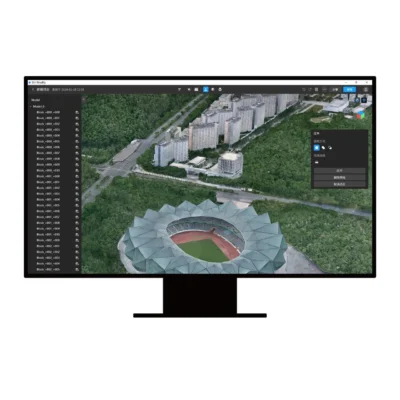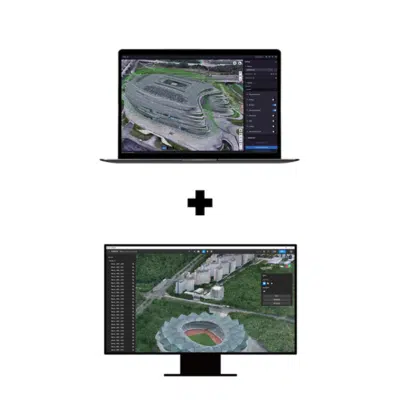
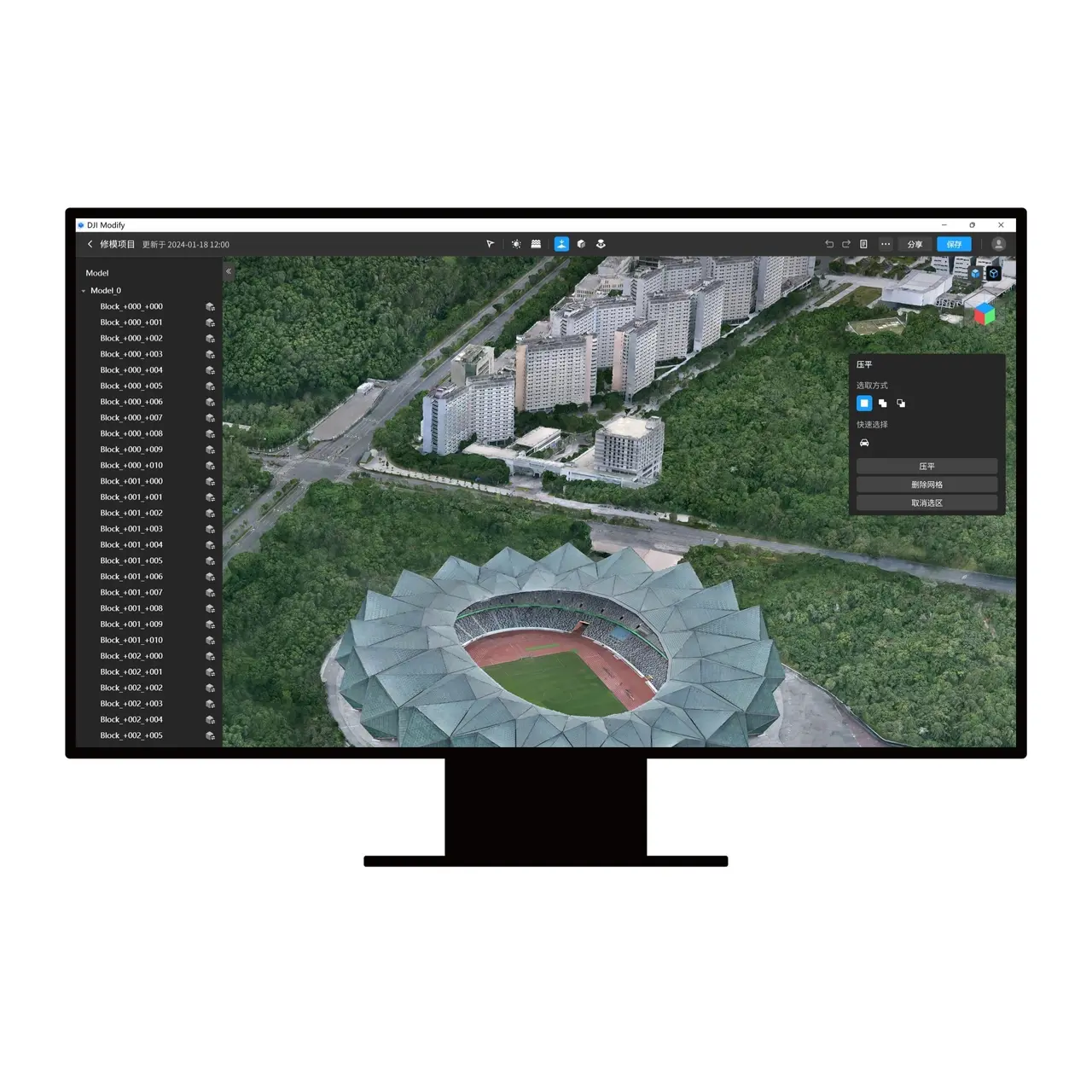


DJI Modify Flagship · Permanent license · Online authorization
DJI Modify Flagship Permanent: refine every project handover
DJI Modify Flagship Permanent is a permanent software license for editing supported 3D meshes and point clouds. Build a repeatable editing stage into your ongoing production work, from reviewing reconstructed results to preparing the final handover.
This listing supplies DJI Modify only. DJI Terra, drones, sensors and workstation hardware are purchased separately. Explore our DJI Terra vs DJI Modify guide to understand the role of each application.
What you are buying
| Product | DJI Modify Flagship Permanent |
|---|---|
| License term | Permanent license with a perpetual entitlement under DJI software terms |
| Authorization | Online; internet connectivity is required during use |
| Account and computer | One DJI account and one computer per license; the bound DJI account cannot be changed |
| Included software | DJI Modify Flagship; a DJI Terra license is not included |
| Delivery | Electronic delivery of license information by email |
| Estimated delivery time | 1–2 hours on business days after payment confirmation and receipt of the required details |
| Currency and invoice | USD; invoice supplied by Drone Emotions |
The current price and applicable tax information appear in the purchase area and checkout. See our Terms of Sale for ordering and delivery conditions.
Mesh repair and point-cloud editing
Clean up reconstructed meshes
Remove floating parts, fill holes, flatten selected surfaces and repair textures or water surfaces. Review the affected area after each operation before applying further edits.
Refine point clouds
Use smoothing, noise reduction, downsampling and classification tools. Select a processing approach around the detail and categories needed by the receiving team.
Prepare terrain results
Generate supported terrain outputs from the point-cloud workflow. Decide which terrain product your project needs and check the result in the application used for final review.
Prepare the handover
Export supported files for downstream use and use the available mesh-sharing workflow when appropriate. Agree the delivery method with the client before processing the full project.
Explore the capabilities and current software information on the official DJI Modify product page.
Check your data before choosing DJI Modify
For mesh editing, DJI specifies visible-light 3D models reconstructed with DJI Terra V4.0.0 or later. Treat point-cloud inputs as a separate compatibility check: verify the intended dataset, application version and export requirements in the current DJI documentation.
Start with a representative project
Choose a small dataset that includes the surfaces, objects and file formats you regularly deliver. Record the required edits and test the complete handover before allocating the software to a large production project.
Read the official DJI Modify FAQ for current compatibility details. For the reconstruction stage, our DJI Terra Features guide explains the available processing workflows.
A practical workflow from reconstruction to delivery
- Define the deliverable. Agree the receiving application, required detail, coordinate reference and review criteria.
- Prepare your source result. Keep an original copy and a clear record of the dataset and processing settings.
- Identify the editing work. List the areas requiring cleanup and distinguish presentation changes from geometry changes.
- Edit and review. Work through the selected areas, compare with the original and inspect the boundaries of each edit.
- Validate the exported file. Open it in the destination application and check the agreed format, coordinates and appearance.
For surveying deliverables, keep a record of the edits and retain independent quality checks. Our Accuracy, GCP & RTK guide helps you plan the wider verification process.
Export formats and downstream checks
Mesh deliverables
DJI lists B3DM, OSGB, PLY, OBJ and S3MB for model export. Choose the format around the recipient’s software and test textures and project structure in that environment.
Point-cloud deliverables
Export options include LAS 1.2, LAS 1.4, PNTS, PLY, PCD and S3MB. PLY, PCD and S3MB do not preserve ASPRS classification information. Check classification requirements before selecting the format.
A successful export is one step in the handover. Confirm that the recipient can open the files, interpret the units and use the intended information before closing the project.
DJI Modify system requirements
Minimum configuration
- Windows 10 or later, 64-bit.
- At least 32 GB RAM.
- NVIDIA graphics with at least 4 GB VRAM and compute capability 6.1 or higher.
- GPU performance at least equivalent to a GeForce GTX 1050 Ti.
- NVIDIA driver 522.25 or later.
DJI’s recommended configuration
- Windows 10 or later, 64-bit.
- At least 64 GB RAM.
- NVIDIA graphics with at least 8 GB VRAM and compute capability 7.0 or higher.
- GPU performance at least equivalent to a GeForce RTX 2070.
- NVIDIA driver 522.25 or later.
DJI Modify is a Windows application. macOS and non-NVIDIA graphics are not supported. Verify the current specifications in DJI’s system requirements.
Capacity depends on the data you need to edit. Share your typical dataset size, graphics card, available RAM and intended deliverables when asking us to review a workstation. If you also reconstruct in Terra, use our Terra workstation guide to plan that application separately.
Installation, activation and computer planning
Download the installer from the official DJI Modify downloads. Sign in with the intended DJI account and enter the supplied activation code. Existing users can access User Center > License Manager > Activate More.
Check the product designation and license status after activation. Keep the invoice, activation information and project backups together so your team can track the deployment when staff or hardware arrangements change.
Planning a computer change?
DJI allows one unbinding per calendar year for a paid single-device Modify license. Review the current procedure before replacing or reallocating the workstation.
Choose a permanent license around recurring project work
For a defined project period, you can also compare DJI Modify Flagship 1 Year. Review the duration and the work you expect to complete before selecting a product.
A permanent license can suit teams that regularly prepare 3D results for client handover. Review the projects you expect to edit, the workstation that will do the work and the staff who will manage production. Match the purchase to a documented workflow rather than choosing software around a single feature.
Permanent license and online authorization
The license term and the authorization method are separate considerations. This is the permanent product, but DJI Modify still requires internet connectivity during use. Include network availability in your workstation planning.
If your current reconstruction setup already meets your needs, this standalone product adds the editing application. If you are also purchasing Terra, compare our Terra Standard + Modify Flagship Permanent and Terra Flagship + Modify Flagship Permanent bundles. These are different products with different license terms.
Order and receive your DJI Modify license
Select the quantity in the purchase area, complete the billing details and choose an available payment method. The automated order-confirmation email constitutes acceptance of the order by Drone Emotions.
Estimated email delivery is 1–2 hours on business days after payment confirmation and receipt of the required details. Orders received on non-business days are processed on the next business day. Payment clearance, incomplete information or availability can affect this estimate.
Contact us before ordering if you are adding Modify to an existing Terra setup, purchasing several licenses, planning a workstation replacement or working to a fixed deployment deadline. Include the exact product name and the deployment you need so we can review the request.
Questions before buying DJI Modify Flagship Permanent
Does this product include DJI Terra?
This listing supplies Modify only. Review the reconstruction software you already have and choose a Terra product separately if your planned workflow requires it.
Is this the annual subscription?
No. This listing is DJI Modify Flagship Permanent. Confirm the product designation in your quotation and activation information when purchasing for an existing software deployment.
What should I prepare before purchasing?
Identify the editing workstation, the DJI account that will hold the license, your typical dataset and the required output. These details help you confirm the purchase against the workflow you need.
Should I choose standalone Modify or a bundle?
Review your existing licenses first. This product is useful when you need to add editing; a bundle is worth comparing when you are also choosing the reconstruction application. Check each listing’s editions and term.
Can you help with a company quotation?
Yes. Send the number of licenses, billing details, intended deployment and any existing entitlements. Include your project deadline and the output you need to prepare.
Where should I check version-specific details?
Use the official product page, FAQ and download resources linked in this description. Tell us the exact application version and file type when asking about an existing project.
Useful guides for your software setup
- DJI Terra vs DJI ModifyUnderstand reconstruction, editing and how to choose the applications.
- DJI Terra License GuidePlan the separate Terra entitlement for your reconstruction work.
- Official DJI Modify FAQCheck application requirements, supported workflows and export details.
- Official DJI Modify downloadsAccess the software installer and available documentation.
Prepare your next editing workflow
Tell us which results you need to edit, the deliverables you plan to share and your workstation configuration. Drone Emotions can help you review the software choice and prepare a quotation for your company.